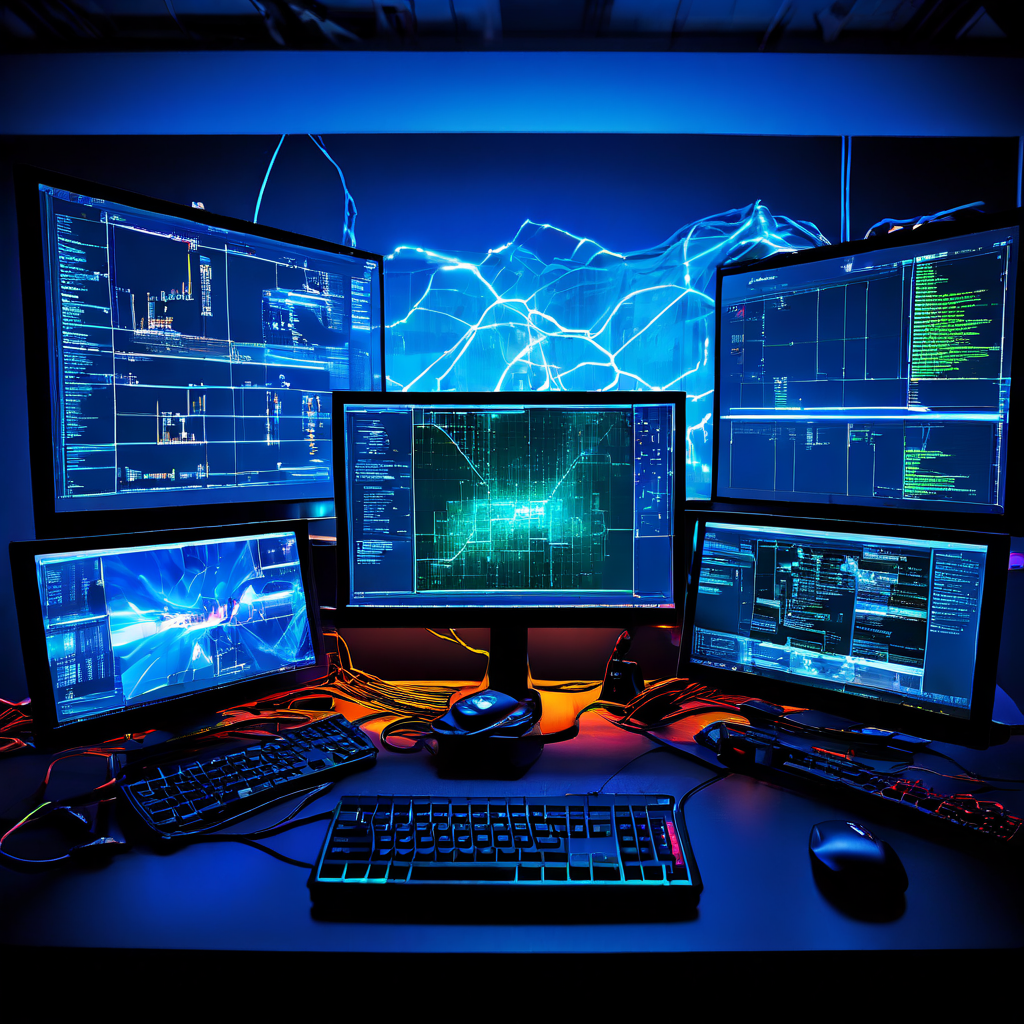
Bright screens causing fatigue during extended play time
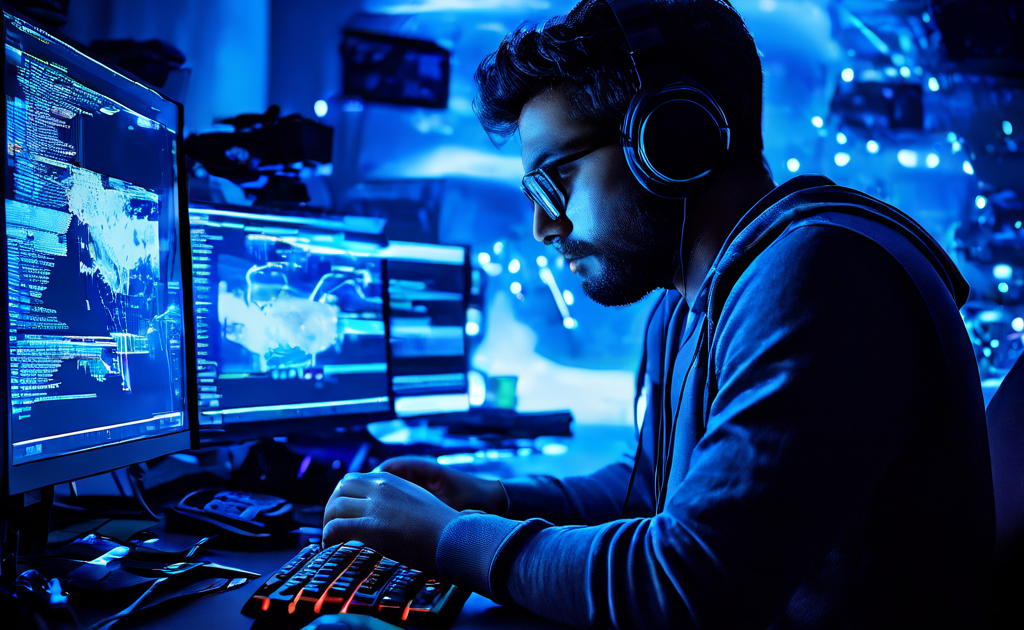
Symptom Diagnosis: Visual Fatigue from Extended Screen Exposure
If you are experiencing eye strain, dryness, or headaches after prolonged gaming sessions, the most probable cause is a combination of excessive blue light emission, inadequate refresh rate settings, and improper ambient lighting. Many players dismiss this as normal fatigue, but in practice, it is a measurable degradation of visual comfort that directly impacts reaction time and session endurance. Symptoms often include difficulty focusing after two to three hours, increased sensitivity to bright white areas on screen, and a tendency to squint or lean closer to the monitor.
Root Cause Analysis: Screen Technology and Human Visual System
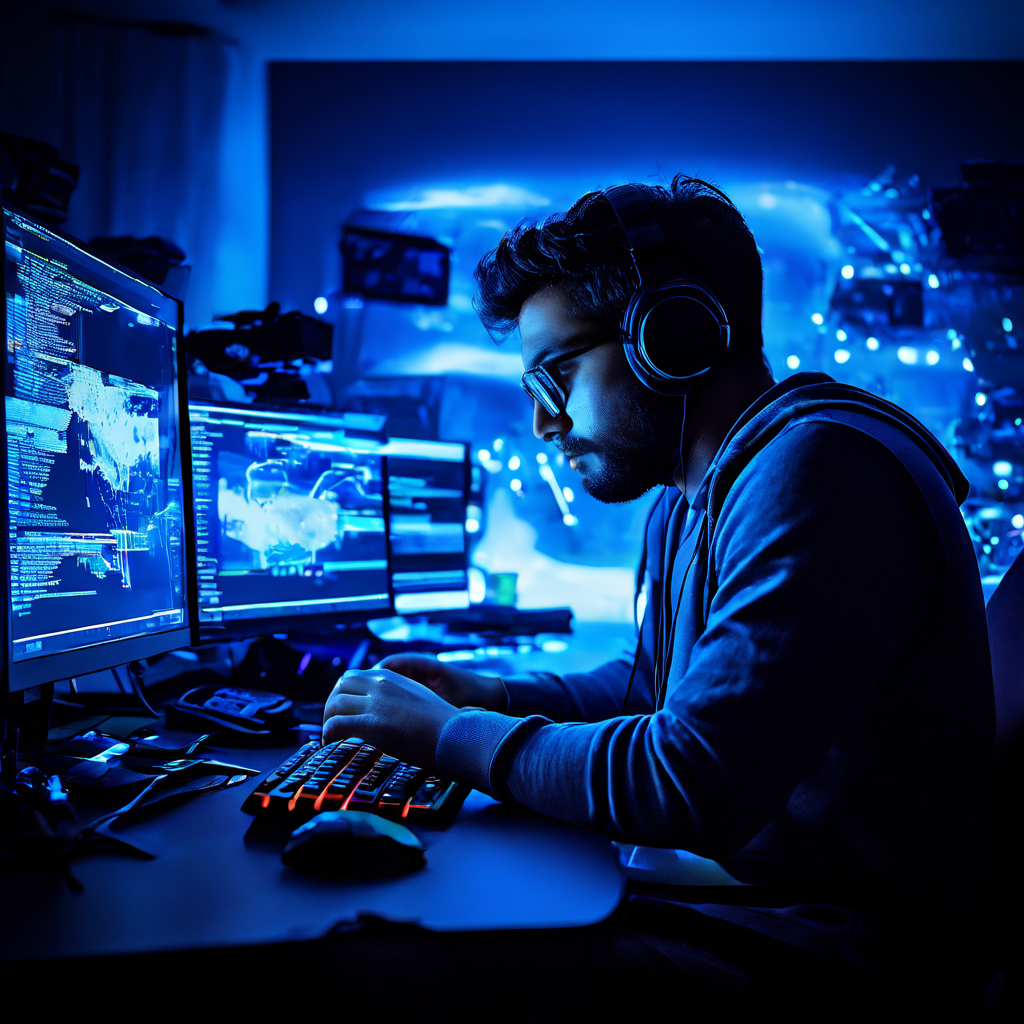
Modern gaming monitors and laptop screens use high-luminance LED backlighting that peaks in the blue wavelength spectrum around 450 nanometers. This short-wavelength light scatters more within the eye, causing the ciliary muscles to work harder to maintain focus. Simultaneously, the retina’s photoreceptor cells are subjected to continuous high-contrast stimulation during fast-paced gameplay. When the display brightness exceeds 200 cd/m² in a dark room, the pupil cannot constrict sufficiently, leading to phototoxicity risk and accelerated fatigue. The combination of flicker from PWM dimming, even if imperceptible, and low refresh rates below 90 Hz further compounds the strain.
Solution 1: Display Calibration and Software Adjustments
Before purchasing any hardware, adjust your current display settings. This is the fastest and most cost-effective intervention. Follow these steps in order:
- Reduce overall brightness to 120–150 cd/m². Use a calibration tool or a free online brightness test pattern to set the white point to 6500K.
- Enable a blue light filter or night mode in the operating system. On Windows 10/11, navigate to
Settings > System > Display > Night light. Set strength to 40–60% and schedule it to activate during your typical gaming hours. - Increase refresh rate to the maximum supported by your monitor. Right-click desktop, select
Display settings > Advanced display > Choose a refresh rate. For competitive gaming, 144 Hz or higher is recommended. - Disable PWM dimming if available. Some monitors have a “Flicker-Free” or “DC Dimming” option in the OSD menu. Check the monitor’s on-screen display settings under
Picture > Eye Careor similar. - Lower in-game brightness and contrast sliders. Many games default to 100% brightness, which is excessive. Reduce until the darkest areas remain visible without losing shadow detail.
Solution 2: Hardware Upgrades for Long-Term Eye Health
If software adjustments are insufficient, hardware changes provide a structural fix. The table below compares common monitor technologies based on their impact on visual fatigue during extended use.
| Technology | Blue Light Emission | Flicker Risk | Typical Refresh Rate | Fatigue Score (1–10) |
|---|---|---|---|---|
| Standard LED (60 Hz) | High | PWM at low brightness | 60 Hz | 8 |
| IPS with Flicker-Free (144 Hz) | Moderate | None | 144 Hz | 5 |
| OLED with DC Dimming (120 Hz) | Low | None | 120 Hz | 3 |
| E-Ink secondary monitor (static) | Minimal | None | N/A | 1 |
Based on this comparison, upgrading to an IPS panel with Flicker-Free technology and a minimum 120 Hz refresh rate yields the best balance between visual clarity and fatigue reduction. For players who can afford a premium solution, OLED panels with DC dimming eliminate all flicker and reduce blue light to negligible levels. However, OLED burn-in risk remains a concern for static HUD elements in games.
Solution 3: Ambient Lighting and Viewing Environment Optimization
The environment around the monitor is often overlooked but accounts for up to 40% of perceived eye strain. A dark room with a bright screen forces the iris to work in extremes. Implement the following environmental controls:
- Place a bias light behind the monitor. Use a 6500K LED strip with brightness set to 10–15% of the monitor’s peak luminance. This reduces the contrast ratio between the screen and the wall.
- Maintain ambient room illumination at 300–500 lux. Use a dimmable desk lamp or overhead light with a warm white bulb (3000K). Avoid direct glare on the screen surface.
- Position the monitor at arm’s length. The top edge of the screen should be at or slightly below eye level. Tilt the screen 10–15 degrees backward to reduce reflection from overhead lights.
- Use anti-glare screen filters if the room has uncontrollable light sources. Matte finishes are preferable over glossy for gaming in non-dark rooms.
Patterns observed across extended gaming setups show that poorly optimized lighting environments intersect directly with what Taking risks after boredom builds during slow moments documents — when visual fatigue accumulates unnoticed during low-intensity phases, players consistently begin making looser, higher-variance decisions not out of strategy but out of a subconscious drive to compensate for the dulled sensory feedback their environment is producing.
Pro Tip: The 20-20-20 Rule with a Timer
Every 20 minutes of gameplay, look at an object 20 feet away for 20 seconds. This resets the ciliary muscle tension and rehydrates the corneal surface. Use a free app like “EyeLeo” or “f.lux” to enforce this schedule. Additionally, blink consciously during intense moments; the average blink rate drops from 15 to 5 blinks per minute during gaming, accelerating dry eye symptoms.
Preventive Maintenance and Long-Term Strategy
Visual fatigue is not a permanent condition, but cumulative damage can reduce contrast sensitivity over years. Schedule annual eye exams with a focus on digital eye strain. Request a blue light filtering coating on prescription glasses if you wear them. For competitive players, consider using a secondary low-resolution monitor for chat, maps, and streaming to keep the primary gaming monitor at optimal settings. The relationship between screen brightness, refresh rate, and ambient lighting determines the entire gaming endurance profile. Without a guaranteed sustainable viewing environment, high-performance gaming sessions are merely temporary phenomena followed by recovery downtime.